


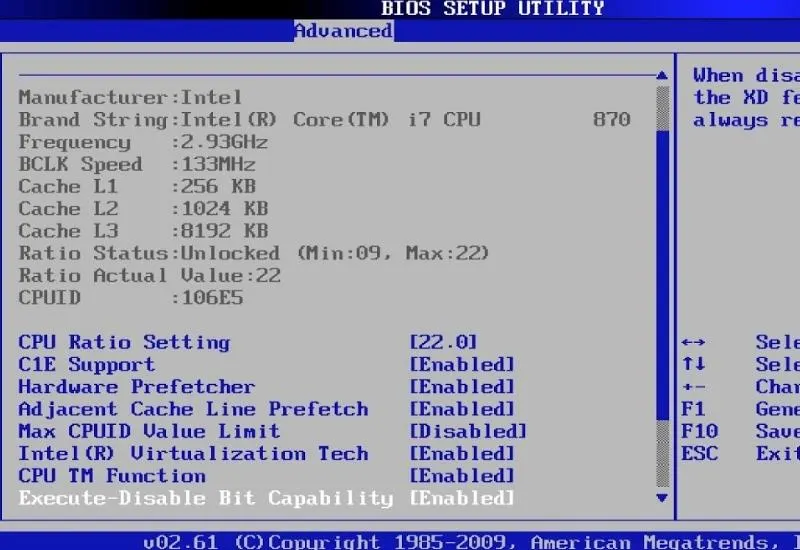
What the BIOS is
The BIOS (Basic Input/Output System) is a set of routines stored on a chip. It establishes the relationship between the operating system and the hardware. It handles the basic level of the computer’s functions, from the system test at power-on to the installation of any hardware configuration board.
When the computer starts, a text appears with the line Press (Delete) for System Setup. On the next restart, press the indicated key to open the BIOS setup program and review its options. See your system documentation for specific details; in general, pay attention to the following points.
Recommended settings
Straight to the hard drive
Turn on the computer. When -Press DEL to enter SETUP- appears on the screen, press the Delete key to enter the BIOS.
Using the cursor keys, go to BIOS FEATURES SETUP and press ENTER. Go to the Boot Sequence option and press PgDn until you set the order C,A. Then find Boot Up Floppy Seek and set it to Disabled with PgDn. Press ESC and choose SAVE & EXIT SETUP with ENTER. Answer the message with Y and press ENTER to restart.
If you have any problem or need to boot from a startup diskette, undo the changes.
Fewer checks
Repeat the first steps, but instead of Boot Sequence go to Quick Power on self test. Press PgUp to set it to Enabled. If you have problems, set it back to Disabled.
Faster memory
Repeat the previous steps, but go to CPU Internal Cache and set it to Enabled. Do the same with CPU External Cache.
More speed
Repeat the previous steps, but go to Video Bios Shadow. If you use MS-DOS, make sure it is set to Enabled. If you use Windows exclusively, you can leave it at Disabled.
Other BIOS options
- Quick power on self test: enable this option to start the system faster.
- System or video bios caching ROM: this option is slow; RAM is fast. Use these options whenever you can.
- Video RAM caching: modern video cards have fast and sufficient RAM, so there is no need to enable it. It is useful with old video cards.
- 8-bit or 16-bit I/O recovery time: if you use an old ISA card, set the lowest possible value to improve performance.
- Bus mastering: enables communication without using the system processor. It should be turned on whenever possible.
- DRAM Read/Write Burst Timing: use the lowest possible value. If the computer becomes unstable, restore the original setting.
- CPU Write Allocate: Enabled improves CPU performance; Disabled improves RAM speed.